Every business has people joining, changing roles and leaving, and each of those moments changes who should be able to see your email, files, finance systems and customer data. Miss a step and you end up with former staff who can still sign in, shared passwords nobody has changed, and accounts carrying admin rights left over from an old job.
This guide gives you practical starter, mover and leaver checklists for a UK small business on Microsoft 365. It draws on guidance from the National Cyber Security Centre (NCSC), the Cyber Essentials scheme and the Information Commissioner's Office, which became the Information Commission on 30 September 2026 and is still known as the ICO.
Tighten up starters and leavers
Get a free, no-obligation IT support quote and talk through your joiners, movers and leavers process.
Why access is where small businesses slip
The NCSC's 2026 guide for small organisations puts it plainly: "When people leave or no longer need access, those accounts often stay active without anyone noticing, so are more likely to have outdated passwords and security settings." Its advice is to remove or disable accounts you no longer use, and to review who has access to important accounts every few months.
The fix is rarely a new tool. It is a written process that someone owns, so steps don't get skipped when a leaver goes in a hurry.
It matters for compliance as well as security. Cyber Essentials requires you to remove or disable accounts that are no longer needed, and the NCSC's password policy guidance relies on "an effective movers/leavers process", rather than forcing everyone to change their passwords regularly.
One process, three moments
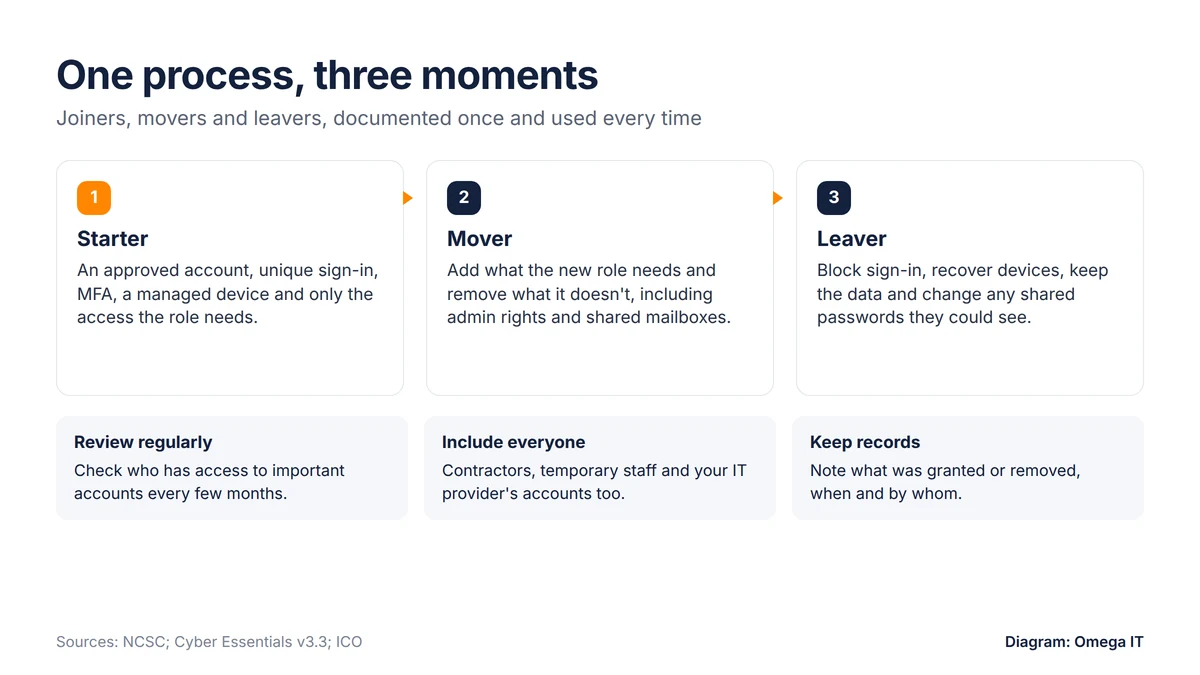
The NCSC's 10 Steps to Cyber Security recommends that account management includes a "joiners, movers and leavers" policy, so access can be revoked when no longer needed or changed for movers. The ICO's access control audit toolkit suggests documenting each process and creating role-based access profiles based on what each role requires.
In practice, that means one short document covering:
- Who triggers it: usually HR or the line manager, with enough notice for whoever runs your IT.
- Who approves access: someone with a leadership role (see the starter checklist).
- Role profiles: the groups, shared mailboxes, apps and devices each role gets.
- Who does the work and who checks it: the ICO suggests asking managers to confirm that access rights have been removed.
- Where it is recorded.
Include everyone who gets an account. The NCSC lists full and part-time staff, contractors, volunteers, students and visitors, and says temporary accounts, such as those created to test processes, should be removed or suspended when no longer required.
Before day one: the starter checklist
- Get approval. Someone with a leadership role should approve the account before it is created (question A7.1 in the Cyber Essentials Danzell question set).
- Create a named account. Every user needs unique credentials, and Cyber Essentials says accounts must not be shared (A7.2).
- Apply the role profile. Add them to the right groups, Teams, SharePoint sites and shared mailboxes, and nothing more.
- Assign the right licence. Our comparison of Microsoft 365 Business Basic, Standard and Premium explains what each plan includes.
- Set up MFA on day one. Cyber Essentials v3.3 requires multi-factor authentication (MFA) on cloud services, and IASME says not using it where available is now an automatic fail. The NCSC also says to enable passkeys for business-critical accounts as a priority where they are available. Our MFA guide covers the rollout.
- Give them a password manager. Cyber Essentials expects you to provide usable secure storage for passwords; see our guide to password managers and passkeys for business.
- Prepare a managed device. Enrol laptops and phones in device management, such as Microsoft Intune, before handing them over, and record serial numbers.
- No admin rights by default. If the role genuinely needs admin access, create a separate admin account used only for admin tasks, as both Cyber Essentials and the NCSC advise.
- Set an end date for temporary staff and contractors. The ICO suggests assigning end dates to access permissions.
- Brief them on phishing and how to report something suspicious; our guide to phishing and invoice fraud is a good starting point.
- Record it: what was granted, who approved it, and when.
Leavers still able to sign in?
Tell us how your team is set up and we'll quote IT support to match.
When someone changes role: the mover checklist
Movers are where access quietly builds up. Someone moves from finance to sales and keeps both sets of permissions; two moves later they can see almost everything. Cyber Essentials requires you to remove or disable special access privileges when no longer required, for example when someone changes role, and question A7.4 asks you to apply the principle of least privilege: only the access needed for the job.
- Start with what to remove, not what to add. Compare their current access with the new role profile.
- Update groups and shared mailboxes, plus Teams, SharePoint sites and distribution lists.
- Check business apps outside Microsoft 365: finance, payroll, customer relationship management (CRM) and bank payment approvals.
- Review admin rights. Remove any they no longer need, and change shared passwords they could see. The NCSC's password manager buyers guide says that when an administrator leaves or changes role, all the passwords they can see and use should be changed.
- Ask the new manager to confirm the access is right, and record the change. The ICO suggests documenting the movers' process and checking regularly that it is followed.
The leaver checklist
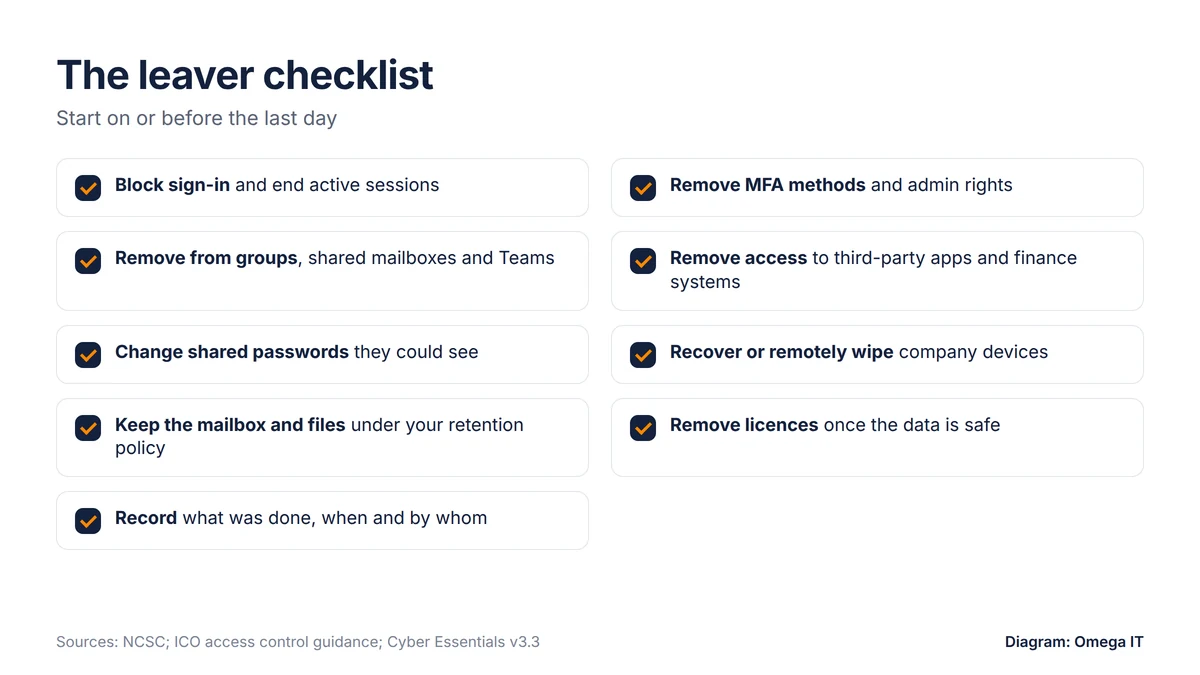
Plan with HR as soon as you know the leaving date. Agree with the line manager what data needs keeping, who takes over the person's email and files, and who collects equipment. Then, on or before the last day:
- Block sign-in to their Microsoft 365 account at the agreed time, rather than deleting it straight away.
- Sign them out of all sessions to end logins that are already active on phones and browsers.
- Remove their MFA methods and any admin roles.
- Remove them from groups, shared mailboxes and third-party apps. Where services use single sign-on (SSO) with your work accounts, the NCSC notes that access can be revoked along with the work account.
- Change shared passwords they knew or could see in a shared vault; a password manager that shows who can see which shared passwords makes this easier.
- Recover company devices, or remotely wipe them through device management if they aren't returned. For personal phones, remove only work data. Our guide to a lost or stolen business mobile covers wiping and barring.
- Deal with the mailbox and files under your retention policy. One option is to convert the mailbox to a shared mailbox the manager can open, set an automatic reply, and move OneDrive files that need keeping. Retention is not the same as backup: see why Microsoft 365 needs a backup.
- Remove licences once the mailbox and files are handled. Deleting the account or removing its licence too early risks losing data.
- Remove access outside IT: bank and payroll logins, card authorisations, building fobs and alarm codes, your domain registrar and supplier portals.
- Record what was done and when, and ask the manager to confirm. The ICO suggests keeping records that show you remove access rights in a timely fashion.
A week or two later, check the sign-in logs for the old account and confirm nothing was missed.
When a leaver isn't leaving on good terms
For dismissals, or anyone you think might misuse their access, the same steps apply but the order and timing change:
- Agree the exact moment with HR, and have IT block sign-in, end sessions and remove admin roles as the conversation happens, not afterwards.
- Cut remote access first: VPN, remote desktop tools and any personal devices with company email.
- Change privileged and shared passwords straight away, including admin accounts and Wi-Fi keys they knew.
- Check for back doors: mail forwarding rules, new accounts, app connections or mailbox delegations they set up recently.
- Preserve evidence. Don't wipe their laptop or delete the account until you have decided whether you need its contents or logs, and take HR or legal advice on the employment side.
- Tell key suppliers, including your IT provider and bank, not to act on instructions from that person.
Want this handled for you?
Omega IT can take the day-to-day IT off your plate.
Contractors, suppliers and your IT provider's accounts
Accounts used by outsiders are easy to forget. The Cyber Essentials requirements (v3.3) say all accounts your organisation owns are in scope, "even when those accounts are used by a third party, such as a supplier, contractor or Managed Service Provider (MSP)". The NCSC's 10 Steps adds that third parties with access should have non-disclosure agreements in place, and that you must be able to revoke their access when necessary.
- Give contractors named accounts with an end date, never a shared login.
- Ask your IT provider for a list of the accounts its staff use on your systems, check they use MFA and separate admin accounts, and review the list when their staff change.
- When you change provider, remove the old provider's accounts and change the passwords it held; our guide on how to switch IT support provider covers the handover.
The proposed Cyber Security and Resilience Bill, still going through Parliament, would also bring medium and large managed service providers under regulation for the first time.
Keeping records and reviewing access
- An access register: who has which accounts, licences, devices and admin rights, who approved them and any end date. The ICO suggests maintaining a list of all staff with privileged and administrator access.
- Admin review: question A7.9 requires you to review the list of people with administrator access regularly, which it says might be monthly, quarterly or annually depending on your business.
- Access review for important accounts every few months, as the NCSC suggests.
- Inactive accounts: the NCSC recommends automatically locking out inactive accounts, and the ICO's records management toolkit suggests deactivating accounts after a period of inactivity.
- Long absences: the ICO's advice for small organisations is to suspend access for anyone absent for a long period.
For a small business a spreadsheet is fine, provided someone owns it and keeps it current.
What Cyber Essentials and the ICO expect
Cyber Essentials v3.3, in effect since 27 April 2026 with IASME's "Danzell" question set, covers the core of these checklists: approved, unique accounts; removing accounts no longer needed; MFA on cloud services; separate admin accounts; and removing privileges people no longer need. Our Cyber Essentials self-assessment guide walks through the questions.
The ICO's guide to data security says personal data should be accessible only to people you have authorised, acting within the scope of their authority. It asks whether you have basic technical controls such as those in Cyber Essentials, while noting that Cyber Essentials only provides a "base" set of controls. The guide is under review following the Data (Use and Access) Act.
On password expiry, sources differ. The ICO's access control toolkit lists password expiry as an option, but the NCSC says regular password changing "harms rather than improves security", and Cyber Essentials v3.3 says not to enforce regular expiry. Follow the NCSC and Cyber Essentials, and rely on a good leavers process instead.
How Omega IT can help
Omega IT is a UK IT support company offering IT support, Microsoft 365, and business mobile and device management services, and it is Cyber Essentials Plus certified. To talk through your starter, mover and leaver process, see our IT support and Microsoft 365 services, or get a free, no-obligation quote.
Sources
- NCSC: 10 Steps to Cyber Security: Identity and access management (11 May 2021)
- NCSC: Small organisations guide: Secure your important online accounts (9 April 2026, reviewed 21 July 2026)
- NCSC: Password policy: updating your approach (reviewed 19 November 2018)
- NCSC: Password manager buyers guide (reviewed 19 November 2018)
- NCSC: Cyber Essentials: Requirements for IT infrastructure v3.3 (April 2026)
- IASME: Cyber Essentials Danzell question set, version 16.3 (May 2026)
- IASME: Important update: changes to Cyber Essentials for April 2026 (12 February 2026)
- ICO: A guide to data security
- ICO: 11 practical ways to keep your IT systems safe and secure
- ICO: Data protection audit framework: access control toolkit
- ICO: Data protection audit framework: records management toolkit (access)
- ICO: ICO governance changes confirmed for 30 September 2026 (September 2026)
General guidance, accurate to October 2026. Diagrams by Omega IT.