
If you could make only one change to improve your business's security, multi-factor authentication (MFA) would be it. It is cheap, usually free with services you already pay for, and it stops the single most common way attackers break into accounts: a stolen or guessed password. This guide explains what MFA is, why it matters so much, and how to roll it out across a small business without turning every login into a chore.
Not using MFA yet?
See how our cyber security team rolls out MFA across your business.
What MFA is
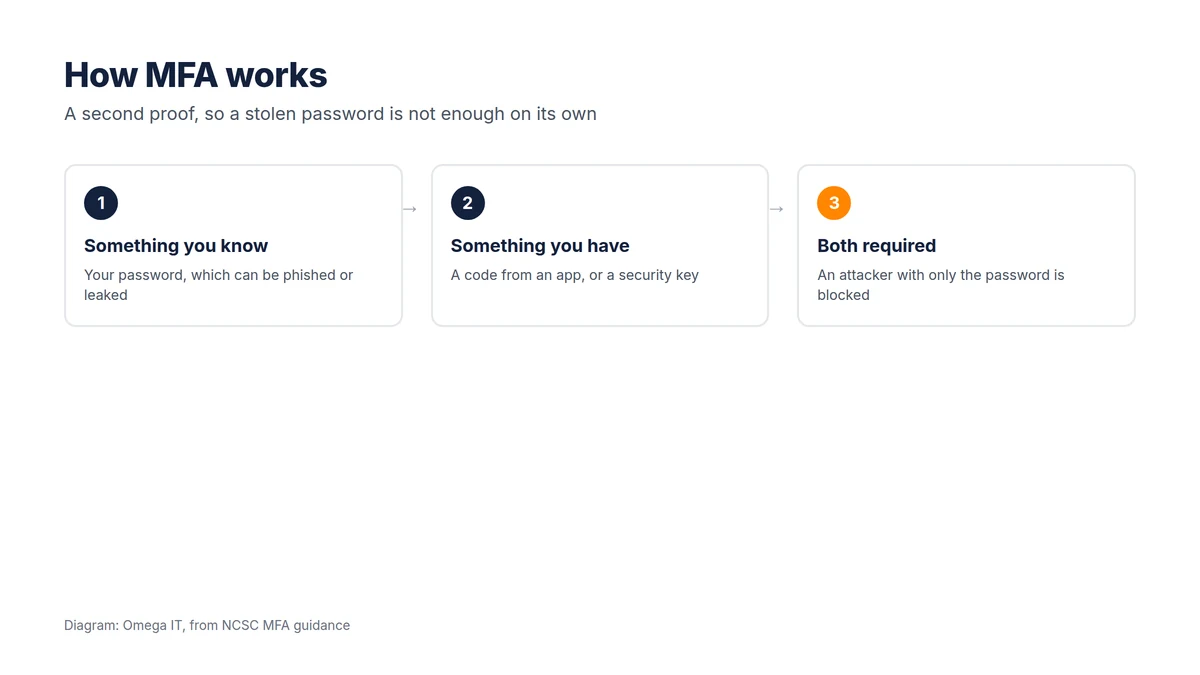
Multi-factor authentication asks for a second proof of identity on top of your password. The password is "something you know"; the second factor is usually "something you have", a code or approval from an app on your phone, or a physical security key. Because the two are independent, an attacker who has only your password, however they got it, still cannot get in. That is the whole point: it breaks the link between a leaked password and a compromised account.
You will also see it called two-factor authentication (2FA) or two-step verification. The idea is the same.
Why it matters so much
Passwords leak constantly, through phishing, reuse across sites, and breaches of other services. Once an attacker has a working password, the account is theirs, unless MFA is in the way. The NCSC recommends MFA for all important accounts precisely because it neutralises the most common attack. In the context of the scams that hit UK businesses most, phishing and invoice fraud, MFA is what stops a phished password from turning into a compromised mailbox and a fraudulent payment. It is also a requirement of good practice under schemes like Cyber Essentials.
Not all MFA is equal
There is a hierarchy of strength, and it is worth knowing:
- SMS text codes — better than nothing, and fine where it is the only option, but codes can be intercepted or redirected.
- Authenticator apps — a code or a "yes, it's me" approval generated on your phone. Much stronger than SMS, and free. This is the baseline to aim for.
- Phishing-resistant MFA (passkeys and hardware keys) — the strongest option. A passkey or a FIDO2 security key is tied to the genuine website, so even a convincing fake login page cannot capture it. Use these for your most valuable accounts.
A useful rule: use an authenticator app everywhere, and phishing-resistant methods for admin, finance and anything business-critical.
The highest-value security step
Our team can enable and manage MFA so it's secure and painless.
Where to turn it on first
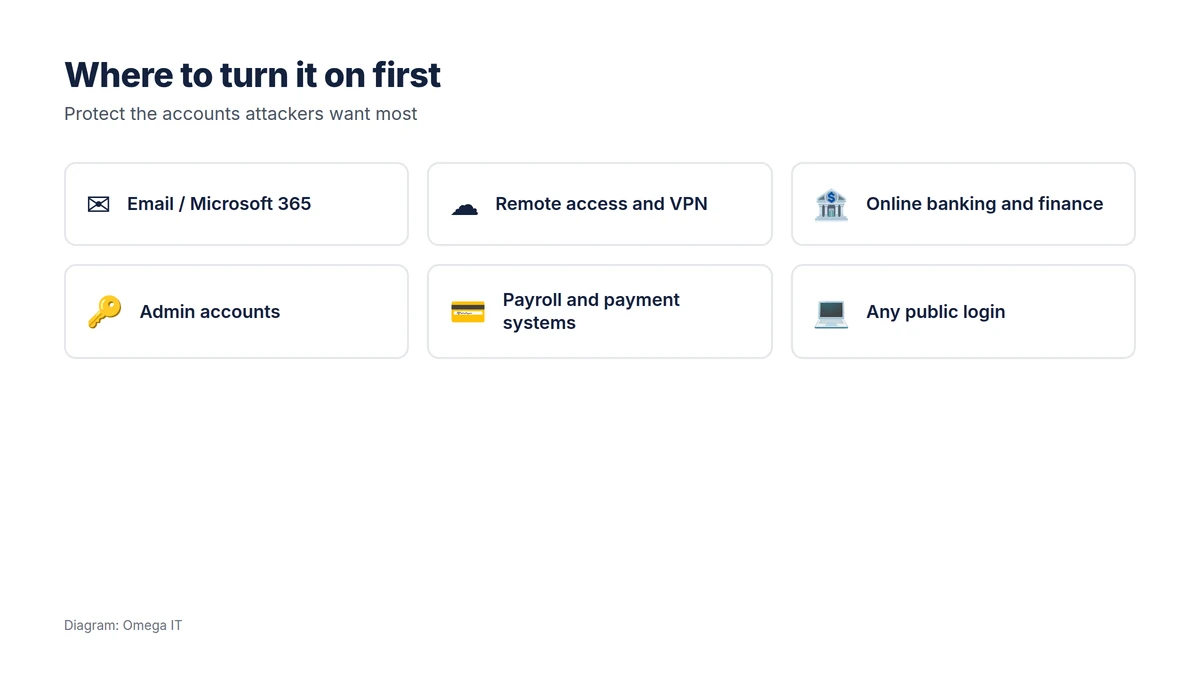
You do not have to do everything at once. Start with the accounts that would do the most damage if lost:
- Email and Microsoft 365, the master key to most of your other accounts.
- Remote access and VPN, the front door to your network.
- Online banking and finance systems.
- Administrator accounts, which hold the keys to everything.
- Payroll and payment systems.
Then extend MFA to every remaining service that offers it, and, importantly, block the older sign-in methods (legacy authentication) that can bypass MFA entirely. In Microsoft 365, Conditional Access can enforce this for you.
Rolling it out without the friction
The usual objection to MFA is "it will slow everyone down". Done well, it barely registers. A few practices keep it smooth:
- Use "remember this device" on trusted company devices, so people are not prompted on every login, only on new or risky sign-ins.
- Let people enrol more than one method, for example an app plus a backup, so a lost or replaced phone is not a lockout.
- Plan for lost devices and leavers: have a clear, verified process to reset someone's MFA, and remove it promptly when they leave.
- Communicate before you switch it on, with a short how-to, so the first prompt is expected, not alarming.
- Prefer app approvals or passkeys over typing codes; they are faster and less annoying.
One caution: attackers sometimes try "MFA fatigue", bombarding a user with approval prompts hoping they tap "approve" to make it stop. Tell staff never to approve a prompt they did not trigger, and use number-matching approvals where available.
MFA is a foundation, not the whole house
MFA dramatically reduces account takeover, but it is one control among several. Keep software patched, protect devices with endpoint security, back up your data, and brief staff on phishing. Our small-business cyber security checklist puts MFA alongside the other essentials, and Cyber Essentials gives you an independent benchmark once the basics are in place.
Want help putting this in place?
Omega IT can set up the protections this guide covers.
Common MFA mistakes
MFA is high-value, but a few mistakes undermine it:
- SMS-only for admin accounts. Text codes are the weakest form and the last place to rely on them is your most powerful accounts. Use an app or a hardware key for admins.
- No backup method. If a user's only factor is on a lost or replaced phone, they are locked out and someone is tempted to turn MFA off. Enrol a second method.
- Leaving legacy sign-in on. Old protocols can bypass MFA entirely; if you do not block them, you have left a side door open.
- Shared accounts. Accounts used by several people are hard to protect with MFA and hard to hold anyone accountable for. Give people their own logins.
- Forgetting third-party apps. Your finance system, CRM and other cloud tools need MFA too, not just email.
MFA in Microsoft 365, specifically
Most UK small businesses meet MFA through Microsoft 365, where there are a few routes. Security defaults provide a simple, free baseline that enforces MFA for everyone. Conditional Access (included with Business Premium and some other plans) is more flexible: it can require MFA based on risk, device, location or application, and block legacy authentication cleanly. Older "per-user MFA" is best migrated to one of these approaches. Whichever you use, turn on number-matching approvals so a user has to type a number shown on screen, which defeats the "approve by accident" attack.
What MFA doesn't stop
MFA is powerful but not a force field. Determined attackers can sometimes steal an active session (the token issued after a successful login) or trick a user through a convincing fake site that relays the login in real time. This is why MFA works best alongside other controls: device compliance so only trusted devices connect, Conditional Access to challenge risky sign-ins, and phishing-resistant methods such as passkeys for your most sensitive accounts. Think of MFA as the biggest single improvement you can make, not the only one you need.
Talk to Omega IT
Omega IT rolls out MFA and Conditional Access across Microsoft 365 and your other systems, with a plan that keeps it painless for staff, as part of our cyber security services and Microsoft 365 services.
Want MFA done properly? Call 0800 254 5458 or 03333 580 300, or request a quote.
Sources
General guidance, accurate to October 2026. Diagrams by Omega IT.