
It is one of the most common and dangerous misunderstandings in business IT: the belief that because your email and files live in Microsoft 365, Microsoft is backing them up for you. Microsoft keeps the service running with impressive reliability, but recovering your data after a deletion, a ransomware attack or a departing employee is your responsibility, not theirs. This guide explains why, and what to do about it.
Is your 365 data backed up?
We help UK businesses back up Microsoft 365 email and files properly.
The shared responsibility model, in plain English
Cloud services run on a "shared responsibility model". Microsoft looks after the parts it controls; you look after the parts you control. Microsoft's own shared responsibility guidance is explicit that, for software-as-a-service like Microsoft 365, the customer always retains responsibility for their data, accounts and access.
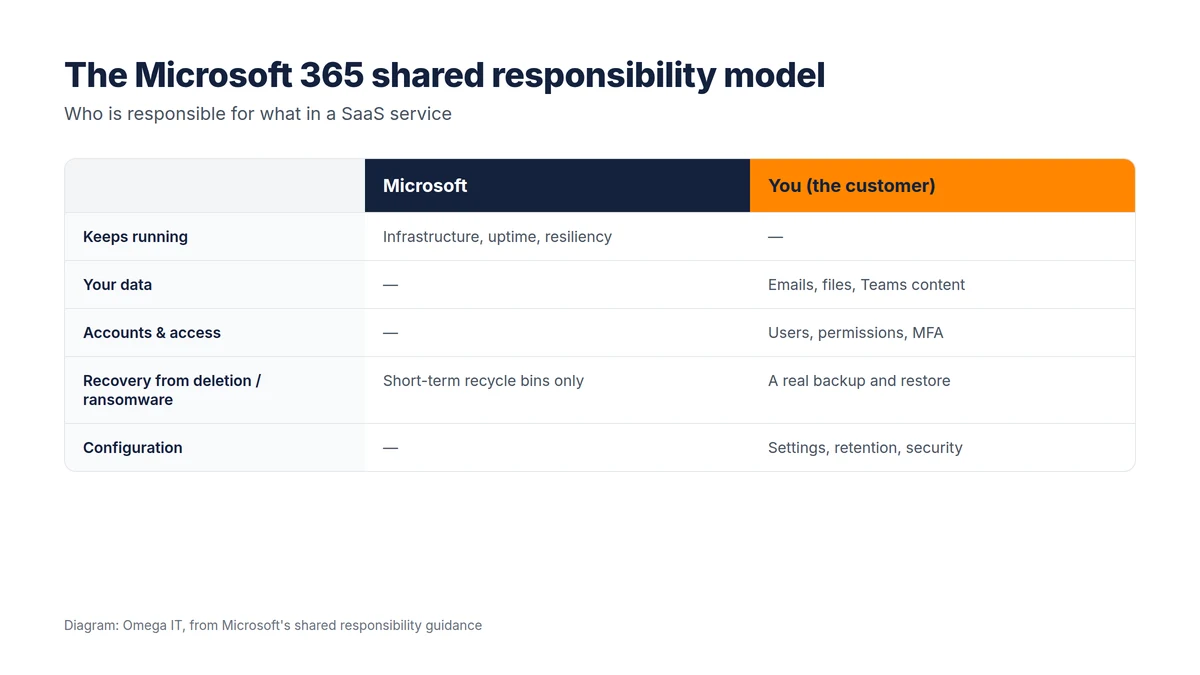
Put simply: Microsoft guarantees the platform is there and working. It does not guarantee to bring back the folder someone deleted three months ago, or the mailbox of a leaver whose account was removed, or the files a ransomware attack encrypted. That recovery is on you.
"But we have the recycle bin and retention policies"
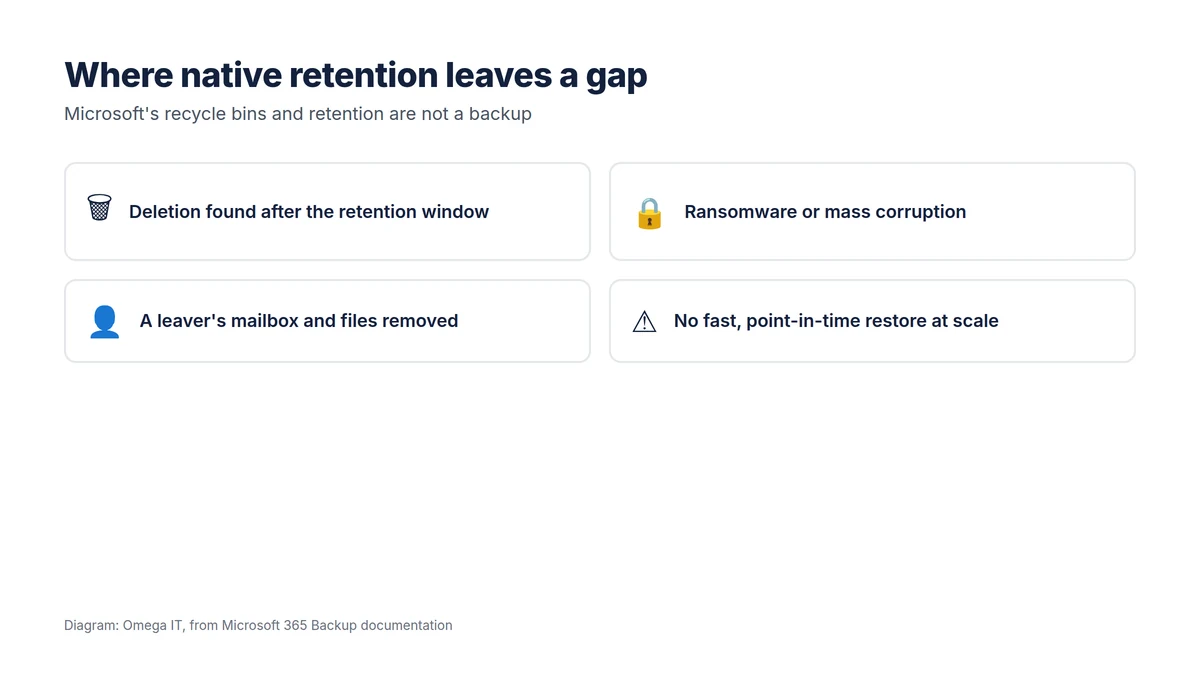
Microsoft 365 does include safety nets, recycle bins, version history and retention policies, and they are useful. But they are short-term and limited, not a backup:
- Recycle bins and version history expire. Once an item ages out, it is gone.
- Retention policies are designed for compliance and legal hold, not fast recovery, and Microsoft notes that retention and deletion policies do not flow through to backups.
- None of them gives you a quick, point-in-time restore of a whole mailbox or site after a bad day.
The three scenarios that catch businesses out
1. Deletion discovered too late
An employee tidies up a SharePoint site or deletes an email thread, and nobody notices for months. By the time it matters, the recycle bin has long since emptied. A backup with a one-year recovery window gets it back; a recycle bin does not.
2. Ransomware or mass corruption
Ransomware increasingly targets cloud-synced files. If malware encrypts documents that sync to OneDrive or SharePoint, the damage propagates to the cloud copy too. A proper backup lets you roll back to a clean point; see our ransomware action plan for the wider response.
3. The leaver problem
When someone leaves and their licence is removed, their mailbox and OneDrive are deleted after a grace period. If you later need an email they sent or a document only they held, it may be unrecoverable. A backup keeps it regardless of licence changes.
Cover the gap Microsoft leaves
Our team can set up backup for your 365 mailboxes, files and sites.
How to cover the gap
You have two main routes, and both are things you actively choose to turn on:
- Microsoft 365 Backup — Microsoft's own pay-as-you-go backup for Exchange, SharePoint and OneDrive, with a recovery window that defaults to one year. It keeps data inside the Microsoft trust boundary and restores quickly at scale.
- A third-party backup — either an independent backup product or one built on the Microsoft 365 Backup platform, often chosen for longer retention, broader coverage or a copy managed separately.
Whichever you choose, the important points are the same: set a sensible recovery window, make sure it covers email, files and sites, and, above all, test a restore. A backup you have never restored from is a hope, not a plan. If you are planning or have recently done a Microsoft 365 migration, adding backup should be part of the project.
Where backup fits with security and compliance
Backup is not a substitute for security; it is the safety net for when prevention fails. Alongside multi-factor authentication, patching and monitoring, a tested backup is what turns a serious incident into an inconvenience. It also supports your UK GDPR obligations: being able to restore personal data after an incident is part of keeping it available and intact, and a tested restore is useful evidence that you can recover from a breach.
What a good Microsoft 365 backup looks like
Turning something on is not the same as being protected. A backup worth relying on has a few characteristics:
- Full coverage of Exchange Online (email), SharePoint and OneDrive, and ideally Teams content, not just mailboxes.
- A sensible recovery window that matches how long problems take to surface in your business; a year is a common default.
- Fast, granular restore, so you can bring back a single email, file or whole site quickly, not just an all-or-nothing recovery.
- Protection from tampering, so that a compromised admin account or ransomware cannot simply delete the backups too.
- Separation of duties, so backup access is not the same as everyday admin access.
Want this set up for you?
Omega IT can configure and manage Microsoft 365 for your team.
Test the restore, not just the backup
The step almost everyone skips is testing. A backup is only proven when you have successfully restored from it, so schedule a periodic test: pick a mailbox, file or site, restore it, and confirm it comes back intact and quickly. Do this at least a couple of times a year and after any significant change. It is far better to discover a gap during a planned test than during a real incident, when the business is already under pressure. The same discipline applies to the rest of your data and is a core part of good IT infrastructure management.
Talk to Omega IT
Omega IT sets up and manages Microsoft 365, including backup and restore testing, as part of our Microsoft 365 services and managed IT support.
Not sure your Microsoft 365 data is actually backed up? Call 0800 254 5458 or 03333 580 300, or request a quote and we will check.
Sources
- Microsoft Learn: Shared responsibility in the cloud
- Microsoft Learn: Microsoft 365 Backup documentation
General guidance, accurate to October 2026; Microsoft product details can change. Diagrams by Omega IT.